dmesg command displays messages retrieved from the kernel ring buffer during boot. It contains a lot of useful informations about hardware, kernel modules and device drivers. In case of hardware failure, the dmesg gives all required informations. It is frequently combined with commands such as grep, less, more, tail or head.
Syntax :
dmesg [options]1. Display All Messages
sudo dmesgThe above command displays all contents of the kernel buffer non-stop, without pauses or navigation capabilities. So we should use instead :
sudo dmesg | less
1.1 Display first 30 Lines : the very early stages of the system startup process such as: Kernel Version and Build Information, CPU Information, Initial Hardware Detection, etc...
sudo dmesg | head -30
1.2 Display last 30 Lines : Device Driver Activity, hardware Events such as detection of new hardware, hot-plugging of devices, or hardware-related errors, system Errors and Warnings, etc...
sudo dmesg | tail -n 302. Search for a specific device
SATA hard disks :
sudo dmesg | grep sda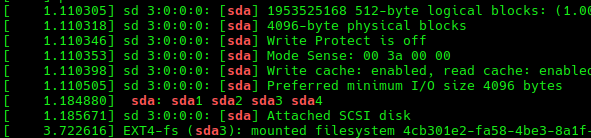
memory : with ‘-i’ option grep will be case-insensitive.
sudo dmesg | grep -i memory
network :
sudo dmesg | grep -i eth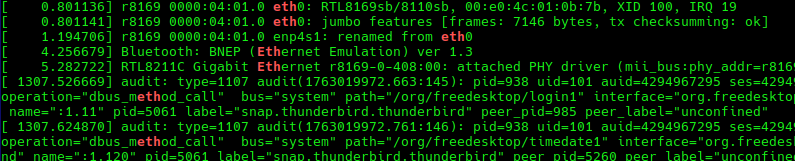
USB :
sudo dmesg | grep -i USB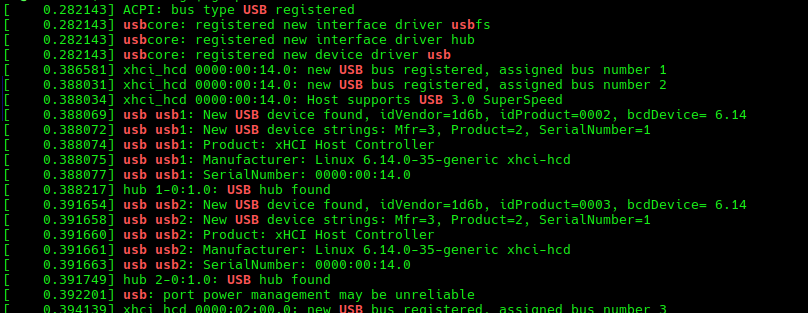
3. Modify time format and enable Human readable timestamps
3.1human-readable
-H (--human) option, generates human-readable output and pipes the output to less
sudo dmesg -H
3.2 Choose Timestamp Format
Use the --time-format=[format] from the options below :
- iso : Provides timestamps in ISO-8601 format YYYY-MM-DD
HH:MM:SS,<microseconds><timezone offset from UTC>. - ctime : Equivalent to using -T, providing human-readable timestamps.
- delta : Displays the time difference between consecutive messages.
- reltime : Displays timestamps as relative time since the last message, in addition to the absolute time since boot.
- notime : Equivalent to using -t, no time displayed just the kernel messages.
sudo dmesg -T | grep -i sda
4. filter dmesg output to a specific category
The -f option allows us to restrict the output to messages belonging to one or more specified facilities (categories).
Syntax :
sudo dmesg -f <facility1>,<facility2>Commonly used facilities include:
- kern: Kernel messages
- user: User-level messages
- mail: Mail system
- daemon: System daemons
- auth: Authorization/security messages
- syslog: Internal syslogd messages
- lpr: Line printer subsystem
- news: Network news subsystem
Example : Display kernel and user-level messages:
sudo dmesg -f kern,user
The -l option allows us to filter by log level. This restricts the output to messages of a specific severity.
Syntax :
sudo dmesg -l <level1>,<level2>Common log levels (ordered by severity) include:
- emerg: System is unusable
- alert: Action must be taken immediately
- crit: Critical conditions
- err: Error conditions
- warn: Warning conditions
- notice: Normal but significant condition
- info: Informational
- debug: Debug-level messages
Example : Display only error and warning messages:
sudo dmesg -l err,warn source :
About Me

aedes: The sanctuary in Latin language. This website is related to my fields of interrest...
Gallery




social




Translate