This article will delve into the install of motionEye on a raspberry pi 3B running Arch Linux Arm. motionEye is a web frontend to the motion daemon a versatile tool for video surveillance that monitors video signals from many types of cameras and performs actions upon movement detection.
Here’s a concise summary of Motion’s capabilities, as described on the Motion Project page:
Motion offers:
- Recording & Capture: Create videos or save images of detected activity.
- IP Camera Support: Passthrough recording and live streaming from various IP cameras.
- Live Monitoring: View real-time camera streams.
- Automation: Trigger scripts when motion or events are detected.
- Logging: Record activity in multiple database formats.
- Privacy & Customization: Apply customizable masks for privacy or to refine motion detection areas.
- Security: Full TLS (HTTPS) support with authentication for web control and streams.
- Device Compatibility: Works with network cameras (RTSP, RTMP, HTTP), Raspberry Pi cameras, V4L2 webcams, video capture cards, and even existing video files.
1. Installation of Arch Linux Arm
Similar instructions can be found in an earlier piece related to the Raspberry Pi4.
1.1 Install Arch Linux Arm
-
We need an SD card with at least 8GB capacity
-
Create 2 partitions : 300Mb for boot and the remaining for /
-
Create the file system
mkdir boot root sudo mkfs.vfat /dev/sdX1 sudo mkfs.ext4 /dev/sdX2 -
mount sd card
sudo mount /dev/sdX1 boot sudo mount /dev/sdX2 root -
Download extract and copy file system
sudo su wget http://os.archlinuxarm.org/os/ArchLinuxARM-rpi-armv7-latest.tar.gz tar -xpf ArchLinuxARM-rpi-armv7-latest.tar.gz -C root sync -
move the files from /boot to partition one
sudo mv root/boot/* boot -
insert the SD card in the RPI and start it up.
1.2 Post install tasks
-
After boot, find the Ip address of Raspberry pi
nmap -sP 192.168.1.0/24 -
login with user alarm and password alarm
ssh alarm@192.168.0.103 -
initialize the pacman keyring and install the Arch Linux ARM signing keys
sudo su pacman-key --init pacman-key --populate archlinuxarm -
set the hostname
echo videoip07 > /etc/hostname -
choose the time zone
ln -sf /usr/share/zoneinfo/Africa/Tunis /etc/localtime -
Add a user and set the password
useradd -m -g users -s /bin/bash -G audio,games,lp,optical,power,scanner,storage,video vidhome passwd vidhome -
Install sudo and add the new user to sudo group
pacman -S sudo groupadd sudo usermod -a -G sudo sc -
edit /etc/sudoers to allow vidhome
visudoScroll down until we find this line, and uncomment it by removing the #, go to first character then type x to remove it
## Uncomment to allow members of group sudo to execute any command
#%sudo  ALL=(ALL) ALL
After that type esc, then :wq and enter to save the file and exit.
1.3 Configure a fixed IP
ip addr show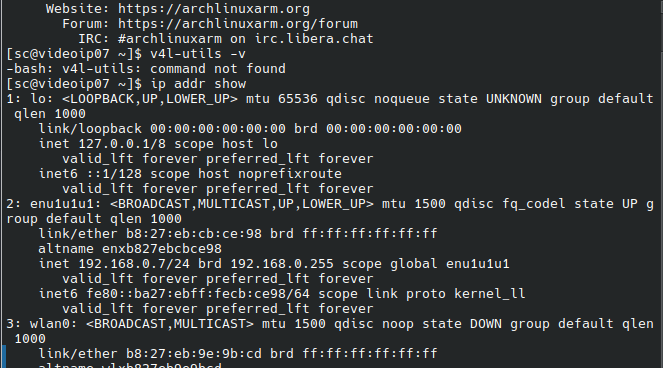
nano /etc/systemd/network/enu1u1u1.network

[Match]
Name=enu1u1u1
[Network]
DHCP=no
Address=192.168.0.120/24
Gateway=192.168.0.1
DNS=192.168.0.1
delete any file in /etc/systemd/network/ and only keep the created one above
ls /etc/systemd/network/
rm /etc/systemd/network/en.network
then start and enable the service
systemctl start systemd-networkd
systemctl enable systemd-networkd
Set the DNS servers :
sudo nano /etc/resolv.confnameserver 8.8.8.8
nameserver 1.1.1.1
nameserver 4.4.4.4Save, then reboot and verify the new fixed local ip.
1.4 Secure the system
As describedpreviously : , we change the root password, delete user alarm and set ssh key login
sudo su
passwd
pkill -KILL -u alarm
exit
login again with user vidhome and set the key authentification login
ssh-copy-id vidhome@192.168.0.71.5 Update the system
Next before proceeding to motionEye install, we need to update the system to avoid "not found error" while installing the many dependencies required.
pacman -Syy
pacman -Syu
2. Installation of motionEye
According to the wiki python3 and several dependencies are required. The deprecated python2 is not used anymore and most instructions are given for debian based systems.The page related to Arch Linux Arm is also deprecated and installation needs update too.
2.1 Dependencies
Here’s a brief description of each dependency, along with their project pages and current versions as of November 2025:
1. v4l-utils
Description: A collection of utilities and libraries for Video4Linux (V4L) devices, essential for managing and configuring video capture devices like webcams.
Project Page: https://linuxtv.org/downloads/v4l-utils/
Current Version: 1.32.0
2. python-tornado
Description: A Python web framework and asynchronous networking library, used for handling web requests and real-time updates in motionEye.
Project Page: https://www.tornadoweb.org/
Current Version: 6.5.2
3. python-jinja
Description: A modern and designer-friendly templating language for Python, used to generate dynamic HTML or text content in motionEye’s web interface.
Project Page: https://palletsprojects.com/p/jinja/
Current Version: 3.1.6
4. python-pillow
Description: A Python Imaging Library (PIL) fork, used for image processing tasks such as capturing, resizing, and saving images in motionEye.
Project Page: https://python-pillow.org/
Current Version: 12.0.0
5. python-pycurl
Description: A Python interface to the libcurl library, used for making HTTP requests and handling network operations in motionEye.
Project Page: https://pycurl.io/
Current Version: 7.45.7
6. ca-certificates
Description: A package containing CA certificates, required for secure HTTPS connections and SSL/TLS verification in motionEye.
Project Page: https://wiki.archlinux.org/title/Ca-certificates
7. base-devel
Description: A meta-package in Arch Linux that includes essential tools for building and compiling software from source, such as gcc, make, and autoconf.
Project Page: https://wiki.archlinux.org/title/Base_devel
8. mime-types
Description: A package providing a MIME type database, used for identifying file types and managing content types in web applications like motionEye.
Project Page: https://github.com/jshttp/mime-types (Python package: python-mime-types)
sudo pacman -S motion ffmpeg v4l-utils lsb-release python3 curl gcc python-pip base-devel mime-types ca-certificates python-tornado python-jinja python-pillow python-pycurlAccording to wiki :
" libpython3.-stdlib package ships a file /usr/lib/python3./EXTERNALLY-MANAGED which prevents the installation of Python modules outside of venv environments, To bypass this block, add break-system-packages=true to the [global] section of your pip.conf:"
grep -q '\[global\]' /etc/pip.conf 2> /dev/null || printf '%b' '[global]\n' | sudo tee -a /etc/pip.conf > /dev/null
sudo sed -i '/^\[global\]/a\break-system-packages=true' /etc/pip.conf
2.2 Install
Finally proceed to motionEye installation :
python3 -m pip install --pre motioneye
motioneye_init
After the install, the motion daemon should be running as a backend and we can connect to the motionEye frontend with our browser at the following url :
http://192.168.0.7:8765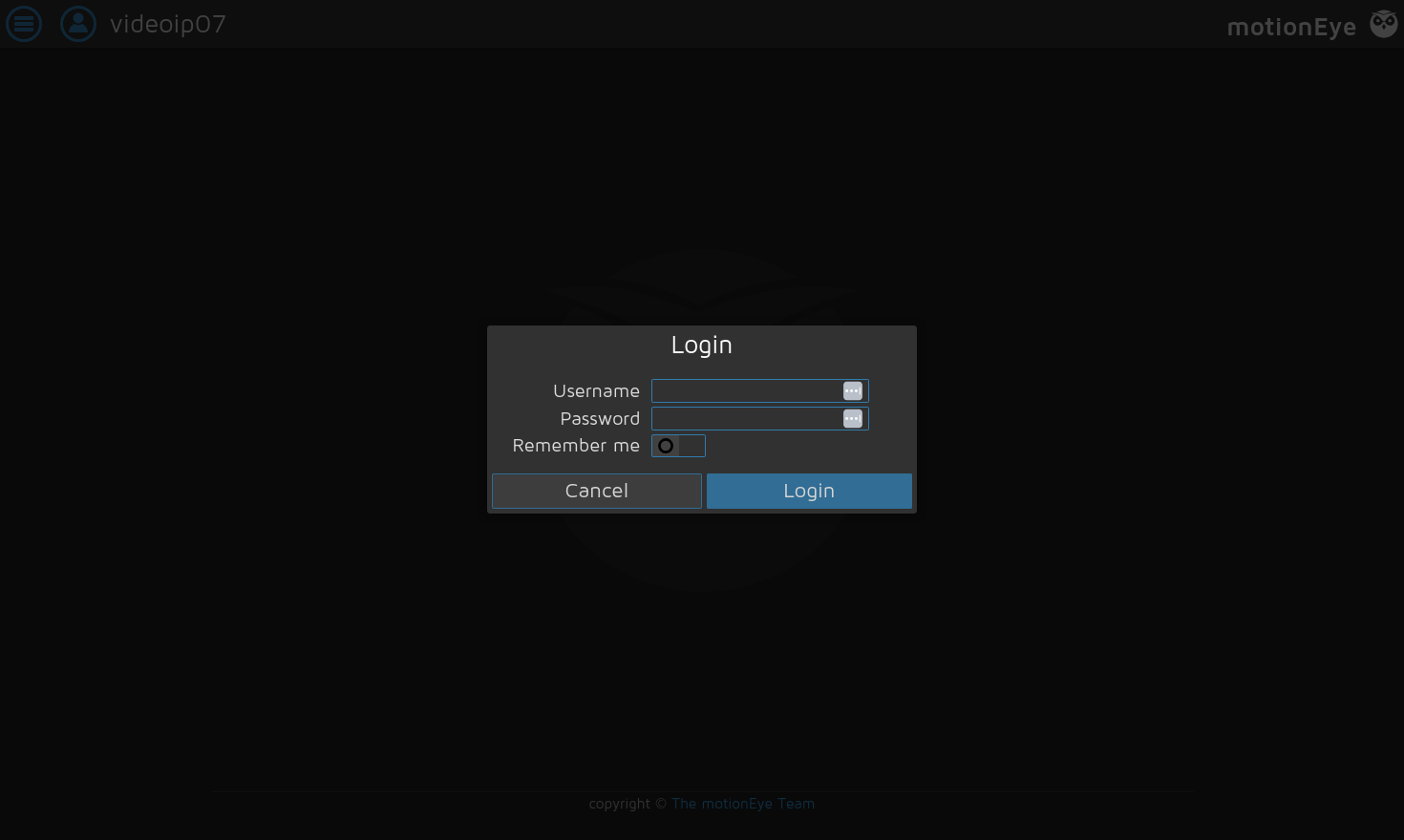
Use admin with empty password when prompted for credentials. And then go to settings to secure the system.
2.3 Add a camera
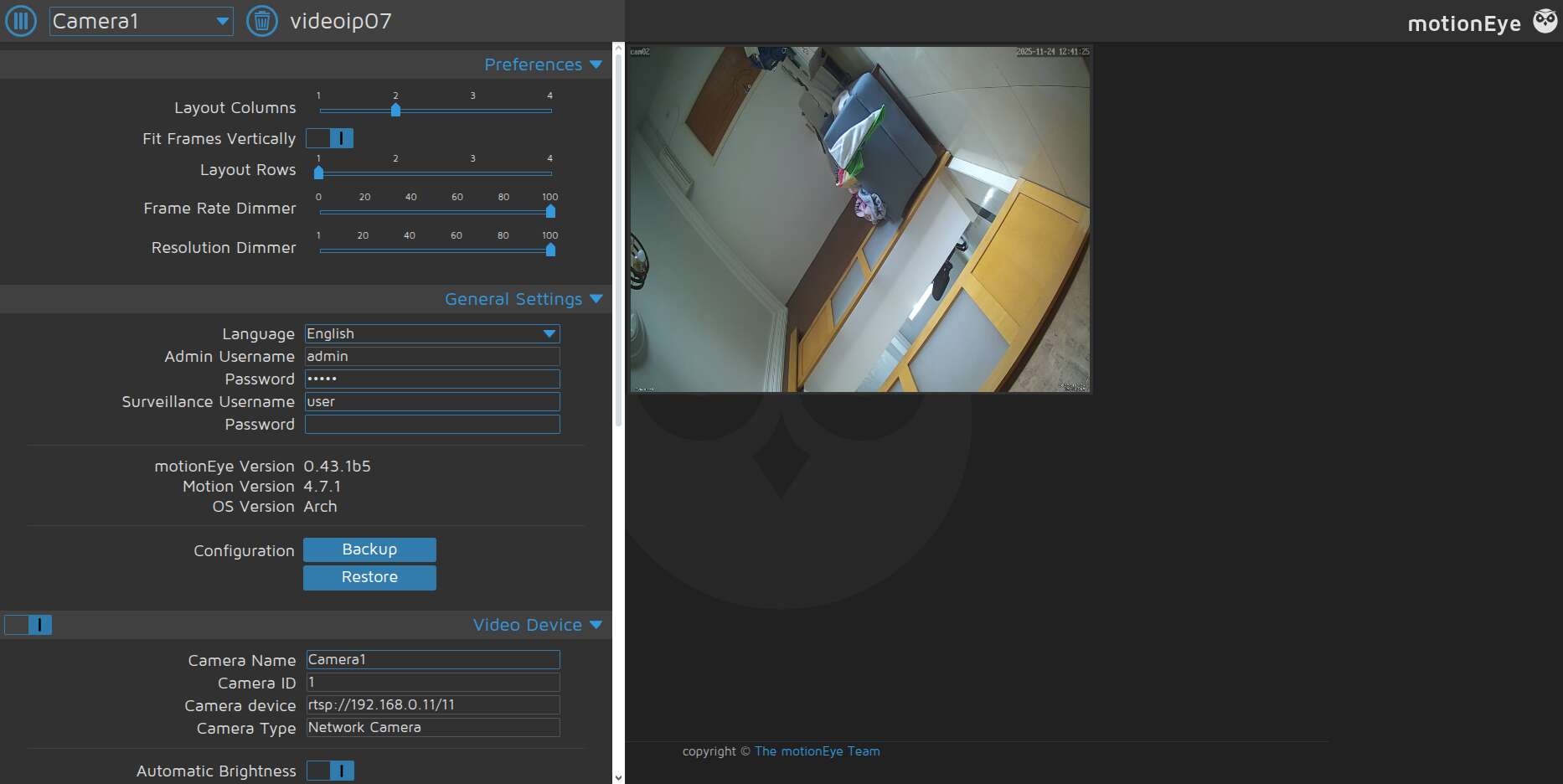
Adding a camera is easy, for example an IP camera with known RSTP stream :
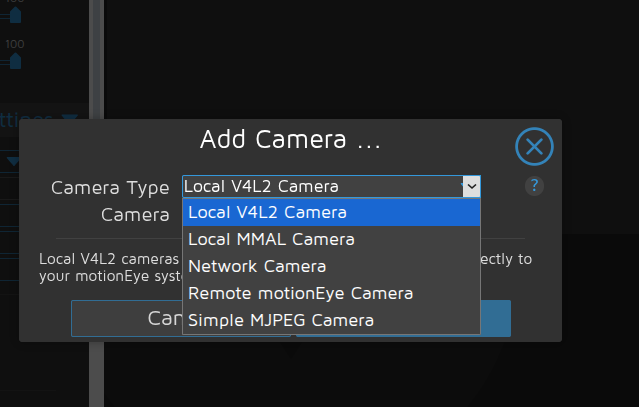
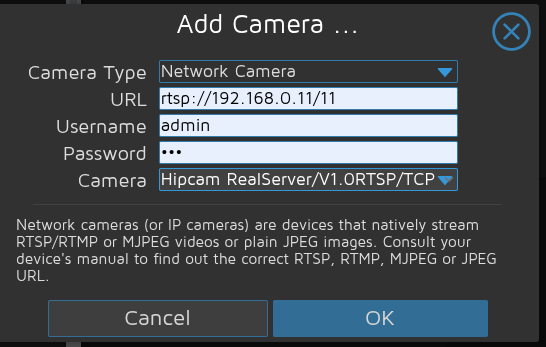
When the camera is added we can move to the configuration screen :
2.4 Upgrade motionEye
sudo systemctl stop motioneye
sudo python3 -m pip install --upgrade --pre motioneye
sudo systemctl start motioneye
About Me

aedes: The sanctuary in Latin language. This website is related to my fields of interrest...
Gallery




social




Translate