Suppose we are asked to install a Debian based flavor on an old laptop or PC but we are unsure about the type of disk that is used. One solution could be the use of a bootable live usb to check performance and gather system specifications prior to installation. This post will walk us through helpful instructions to learn more about disks.
1. lsblsk command
The lsblk command lists all available block devices on a Linux system, such as hard drives and SSDs, in a tree-like format by default.
It displays information like the device name, size, type, and mount point to help users identify and manage storage devices.
Common options include -a to show all devices (including empty ones), -f for file system information, and -l for a plain list format instead of a tree.
lsblk command is part of the util-linux package and comes pre-installed with most Linux distributions.
lsblk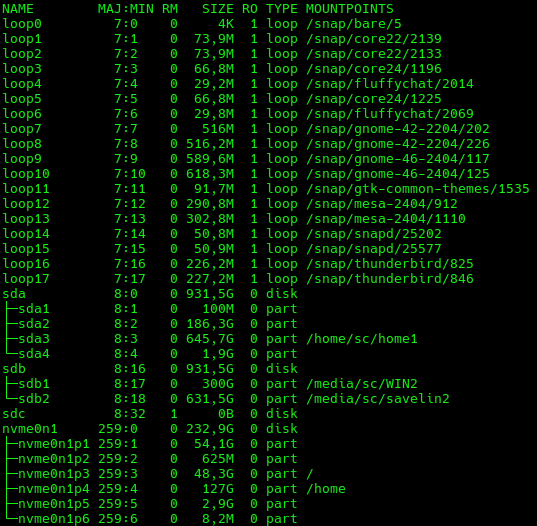
2. SMART Monitoring Tools
The smartctl command (and smartd the daemon that runs in the background) is a part of the S.M.A.R.T (Self-Monitoring, Analysis and Reporting Technology) monitoring tools package that use built-in drive diagnostics to predict potential hardware failures in hard drives and SSDs, but also provides reports on drive health, including statistics on usage, errors, and temperature; runs built-in tests on the drive to check its integrity. Smartmontools was originally derived from the Linux smartsuitepackage.
sudo smartctl -a /dev/sda
[sudo] password for sc:
smartctl 7.4 2023-08-01 r5530 [x86_64-linux-6.14.0-34-generic] (local build)
Copyright (C) 2002-23, Bruce Allen, Christian Franke, www.smartmontools.org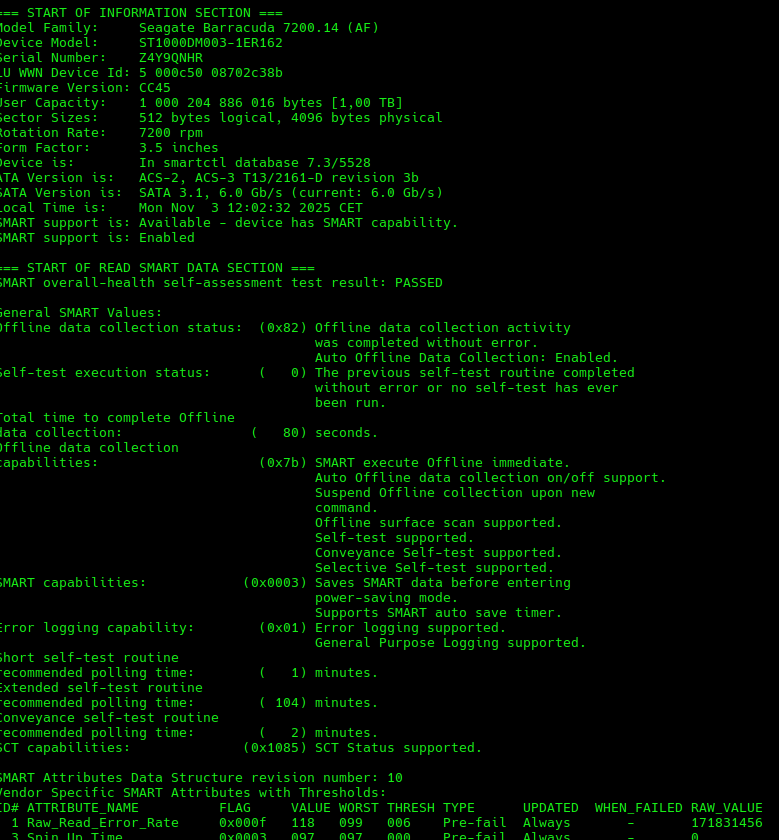
3. Fdisk
fdisk is a powerful, text-based utility in Linux (and other operating systems) used for viewing, creating, deleting, and manipulating disk partition tables, or even change the system ID of a partition.
The following command allows us to view all partitions on our system:
sudo fdisk -l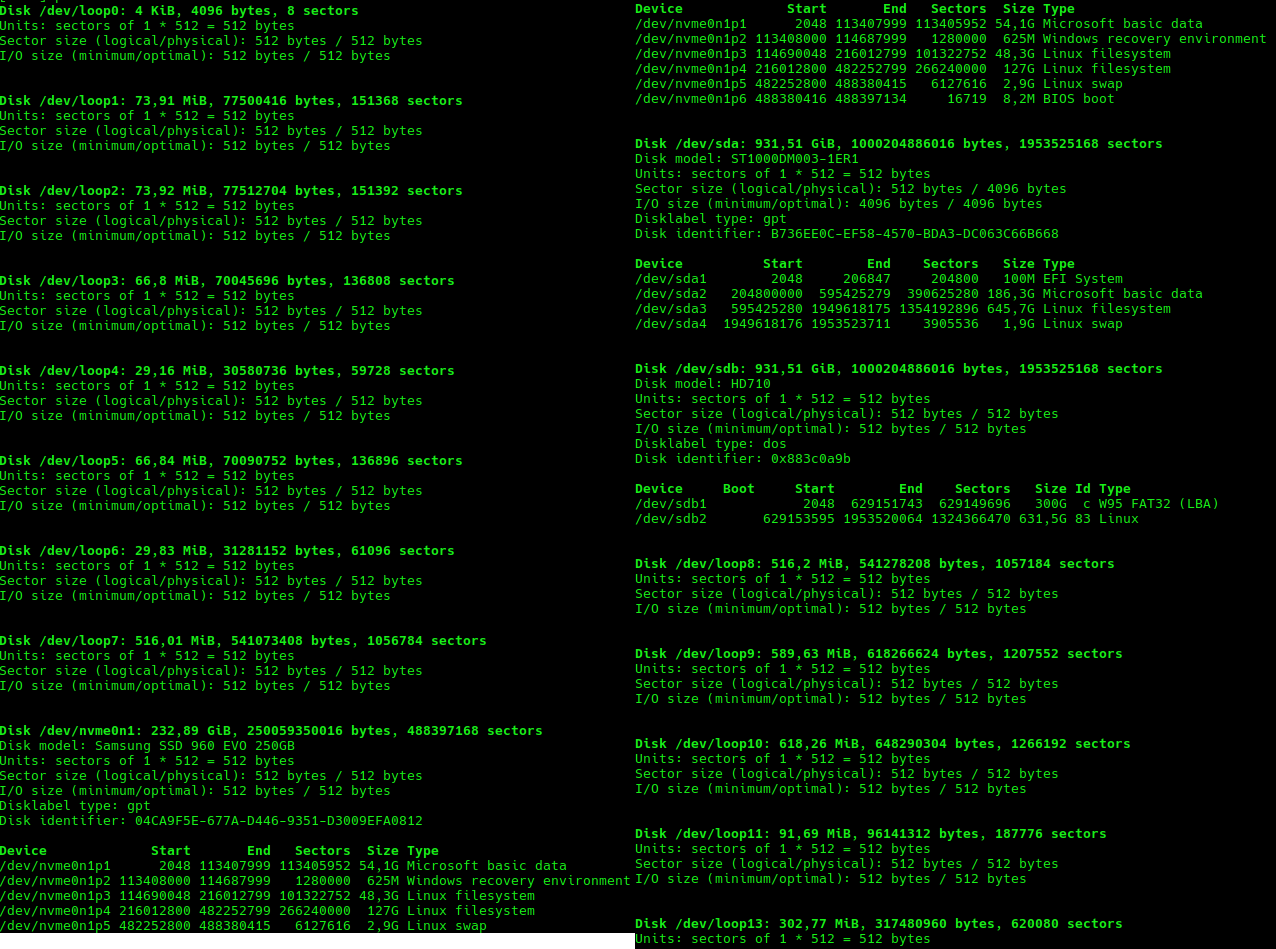
4. df
The df command (disk free) is used to report the amount of free disk space on mounted file systems.
sudo df -h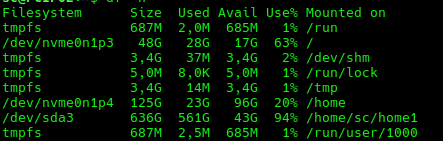
5. Using dmesg
dmesg (diagnostic messages) is a command-line utility in Unix-like operating systems that displays messages from the kernel ring buffer, which contains information about hardware, device drivers, and system events during boot and runtime. By default, it shows all messages in the buffer, but its output can be filtered with options or piped to other commands like less or grep.
sudo dmesg | grep -i -e scsi -e sata -e nvme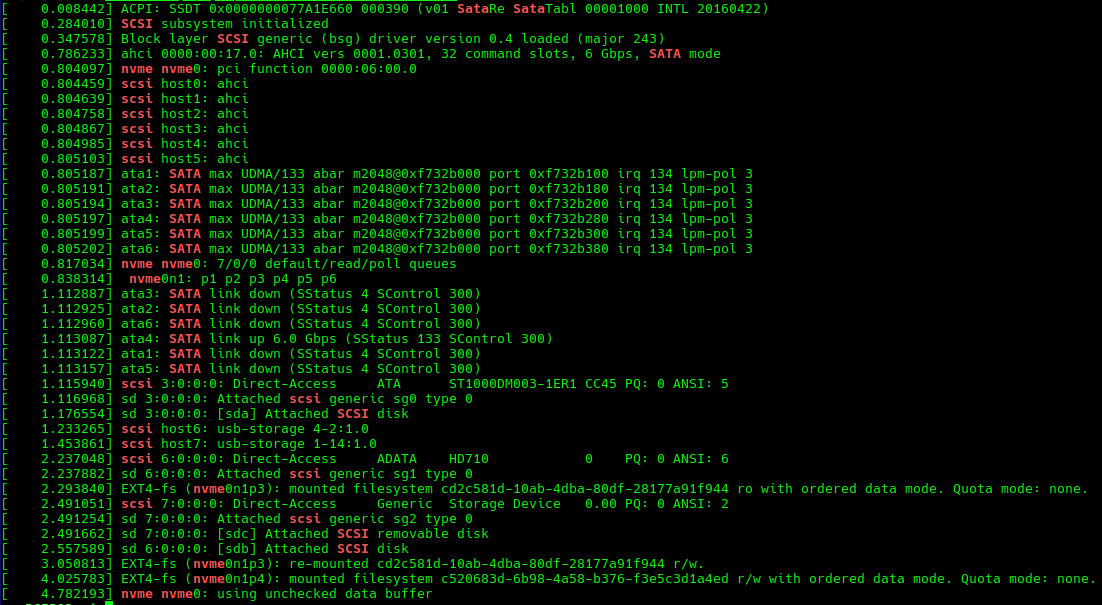
6. lshw
lshw (List Hardware) is a command-line utility in Linux that provides detailed information about a system's hardware configuration, including the CPU, memory, motherboard, and network interfaces. To get a complete report, the command must be run with sudo or as the root user to access all hardware details.
sudo lshw -C disk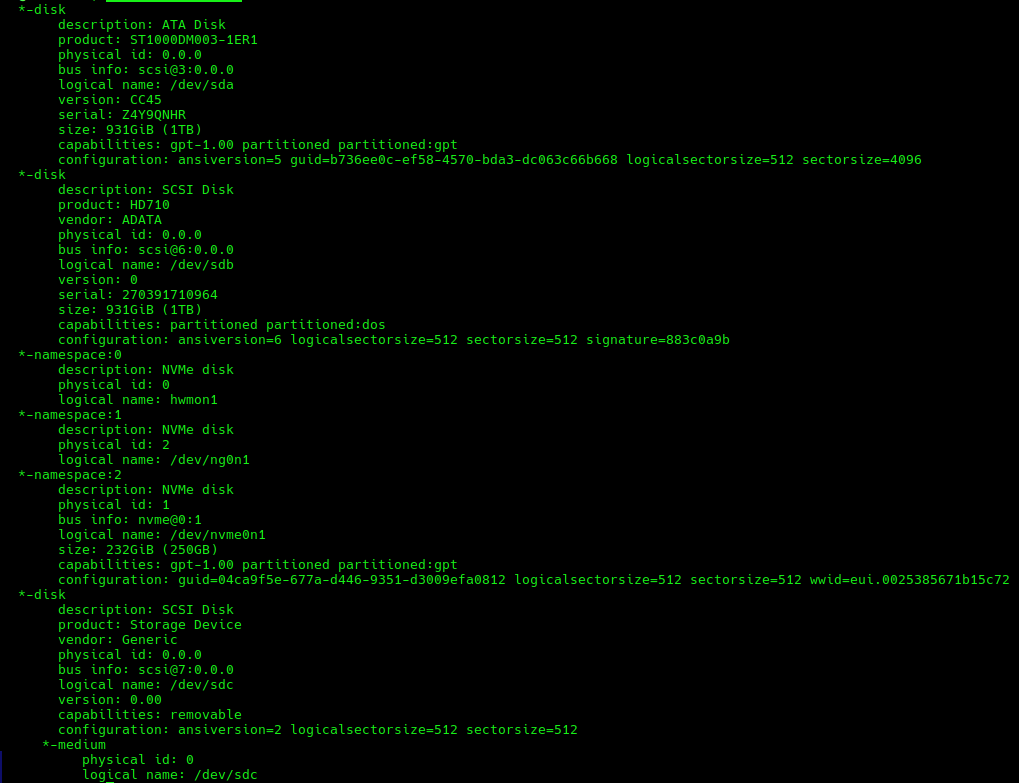
we can also use the -short option which outputs the device tree showing hardware paths :
sudo lshw -short -C disk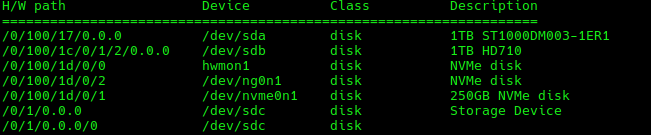
7. hdparm
hdparm (hard drive parameters) is a powerful command-line utility used for interacting with and managing various parameters of hard disk drives (HDDs), solid-state drives (SSDs), and other ATA-interfaced storage devices. It allows users to view and modify hardware parameters, optimize performance, and perform certain low-level operations.
sudo hdparm -I /dev/sda 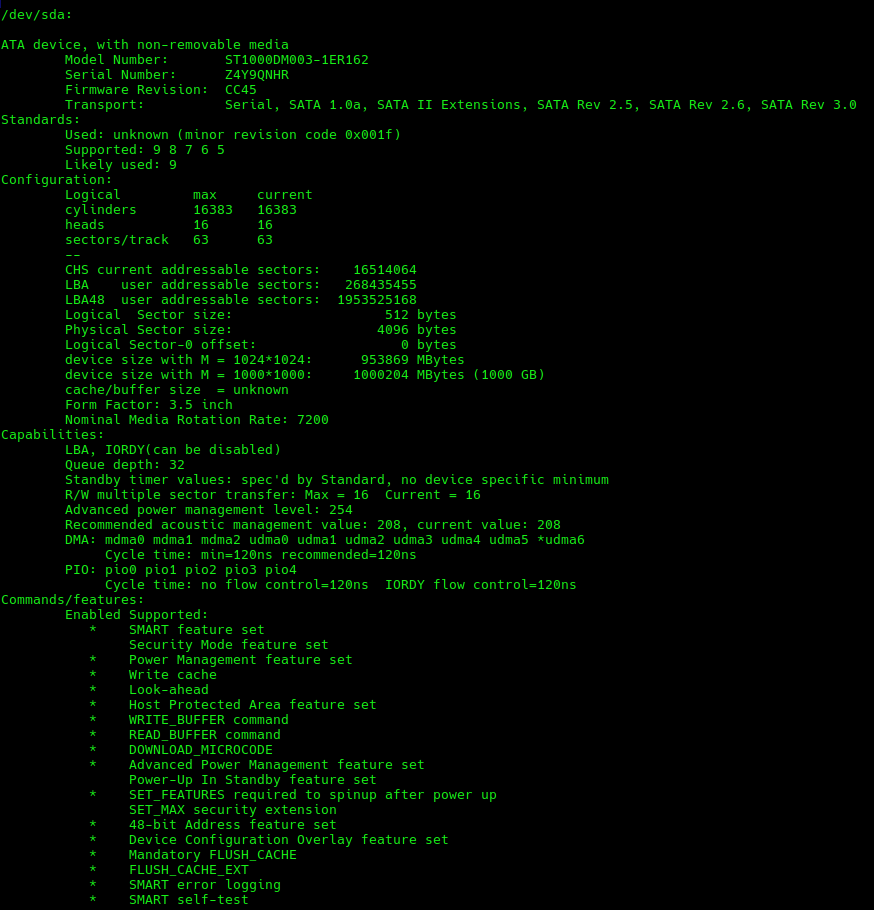
8. Read sysfs
The sysfs pseudo filesystem is specifically designed to export kernel object attributes as simple, human-readable text files for userspace applications to read. To list the available block devices :
ls /sys/block

loop0  loop1  loop10  loop11  loop12  loop13  loop14  loop15  loop16  loop17  loop18  loop2  loop3  loop4  loop5  loop6  loop7  loop8  loop9  nvme0n1  sda  sdb  sdc
and then we can find where the root / filesystem is installed :
df / -h

Filesystem      Size  Used Avail Use% Mounted on
/dev/nvme0n1p3   48G   28G   18G  62% /
As it appears from the first command, there are several sata disks. In case we've forgotten which one is SSD or HDD we can use cat, a standard and safe practice, to read sysfs attribute files to check if a drive is rotational or not.
cat /sys/block/sda/queue/rotational

1
We have an output of 1 that indicates the disk is HDD (rotating), and 0 indicates an SSD because it doesn't rotate.
Source :
About Me

aedes: The sanctuary in Latin language. This website is related to my fields of interrest...
Gallery




social




Translate