The dig command, short for "domain information groper," is used for querying DNS (Domain Name System) name servers. It can perform :
- DNS lookups and displays the answers returned from the queried name server(s).
- Query Specific Record Types such as MX (Mail Exchanger) records for email servers, NS (Name Server) records for authoritative name servers, CNAME (Canonical Name) records for aliases, SOA (Start of Authority) records for zone information, and more.
- Trace DNS Resolution Paths: The +trace option allows us to see the full resolution path, showing the sequence of DNS servers queried to resolve a domain.
- Specify DNS Servers to query using the @ symbol followed by the server's IP address (e.g., @8.8.8.8 for Google's public DNS). It is part of the dnsutils (or bind-utils on some systems).
Dig syntax :
dig @DNS-server Hostname|IP typeDNS-server : The name or IP address of the name server
Hostname|IP : The hostname or IP address to which the query is directed.
type : The DNS record type to retrieve. By default, dig uses the A record type.
1. install
On debian based distributions
sudo apt install dnsutils2. DNS lookup
dig chatons.org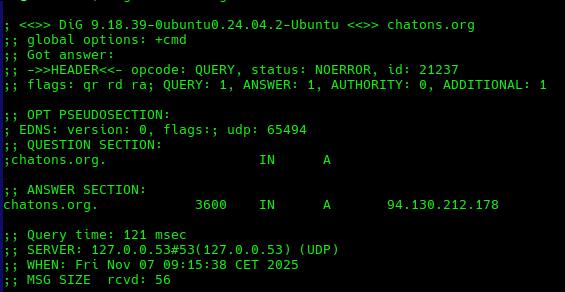
Five columns can be found in the ANSWER SECTION :
- name of the server that was queried.
- Time to Live
- query class : IN = Internet.
- query type : A = address record.
- IP address of the domain name.
3. reverse DNS lookup
dig -x 142.250.180.206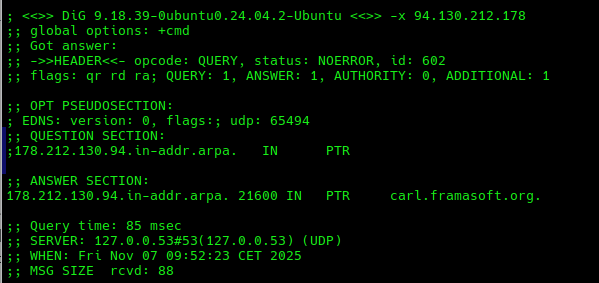
4. Lookup a specific type
dig chatons.org MX
5. Trace the DNS resolution path
dig +trace chatons.org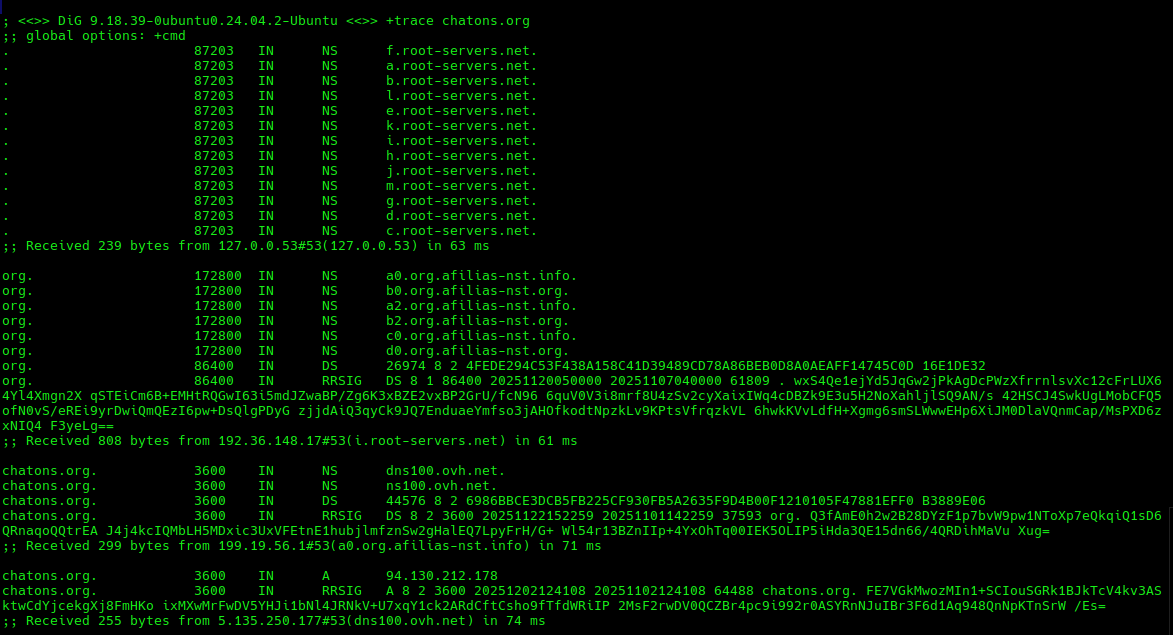
6. specify a DNS server
dig @8.8.8.8 chatons.org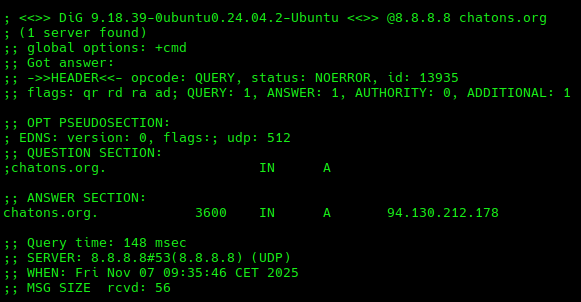
7. Using common options
Display only the IP address associated with the domain name
dig +short chatons.org

94.130.212.178
Print Only the ANSWER SECTION
dig +noall +answer chatons.org

chatons.org. 1884 IN A 94.130.212.178About Me

aedes: The sanctuary in Latin language. This website is related to my fields of interrest...
Gallery




social




Translate